Most SCUM server guides are copied from each other, and they carry the
same three mistakes: the server "is about 6 GB", the query port
"follows from the game port", and the server is "up" when the log says
Game Engine Initialized. The first is a download size sold as a disk
size, the other two are plain wrong, and each one costs a friend an
evening. Here is the setup as we measured it — in August on
SCUM 1.3.2, and again in September on 1.3.3 from a fresh install.
What you need
- A Windows PC with 20 GB free. The "about 6 GB" the guides repeat is what comes down the wire — 6.1 GB, compressed, on the September build. Unpacked on disk the server is around 17 GB: 16.5 GB when we installed it fresh on 27 September 2026 (Steam's own "space required" says 16.49), 18.4 GB off Steam's depot list in August; the number moves with every patch, and our size table is rebuilt from the manifest. Plan for the disk number, not the download number — the difference is an install that finishes and one that fills the disk and dies.
- Admin rights, once per start. The server's own manifest asks Windows for the highest rights available, so on an administrator account you get the UAC prompt every time you start it, and from a normal terminal it refuses to start at all. Say yes, or start it from a terminal you opened as administrator.
- Steam, logged into an account that owns SCUM. The server is a free tool in that account's library, so installing it is one click, and Steam keeps it on the current build from then on. An account without the game does not get the tool in its library — for that PC, SteamCMD downloads the same server with an anonymous login, no account needed; the second way below.
- Nothing else. The server itself is free either way.
Install
Two ways. The first is the one to take when the hosting PC has Steam on it, which is nearly always.
From Steam, the easy way
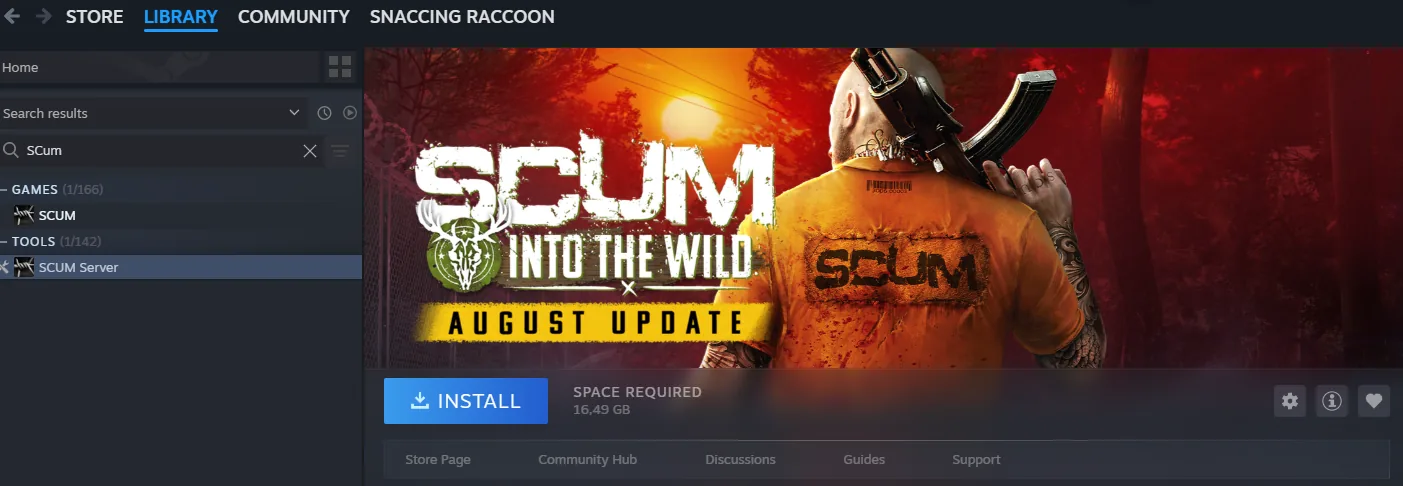
Open the Library, type SCUM into the search box on the left, and
look under Tools, not under Games: the entry is SCUM Server.
Install it. Steam names the space it needs right there — 16.49 GB on
the September build; the download itself is 6.1 GB, which is where the
"about 6 GB" comes from — and from then on it updates the server the
way it updates a game, so after a SCUM patch the server is on the new
build before your friends' clients are.
Before the first start, give it the ports: the gear on the entry → Properties → General → Launch options, and paste
-port=7777 -QueryPort=7779 -MaxPlayers=8Steam passes -log by itself (we saw it twice on the command line
after typing it as well — harmless, just not needed). What the three
arguments do is under Start it below; the short version is that
without -QueryPort nobody can find the server.
Then Launch. Windows asks for admin rights (see above), a server window opens and prints what the server is doing, and Steam's button turns into Stop — which is also how you stop it later. We checked the process afterwards: the arguments arrived, the ports are UDP 7777
- 7779 and TCP 7779, and a client connected to it.
Where it landed: right-click the entry → Manage → Browse local
files. By default that is
C:\Program Files (x86)\Steam\steamapps\common\SCUM Server, and
inside it the executable is SCUM\Binaries\Win64\SCUMServer.exe —
you only need the folder for the settings file and the world, both
further down.
With SteamCMD, when the PC has no Steam
steamcmd +force_install_dir C:\scum-server +login anonymous +app_update 3792580 validate +quit3792580 is the SCUM Dedicated Server app, not the game. The
download took us 99 seconds on a fast line; SteamCMD's very first run
sometimes ends in "Missing configuration" right after it updated
itself — run the same command a second time. When it is done, the
executable is at C:\scum-server\SCUM\Binaries\Win64\SCUMServer.exe.
The price of this way: nothing keeps it current. After a SCUM patch a
client on the new build cannot join a server on the old one, and it is
you who runs the same command again — validate included — before the
next evening. Steam does that part by itself.
Start it, with all four arguments
From Steam, this is the Launch button with the launch options set as above. From a SteamCMD install, it is the executable in its folder:
SCUMServer.exe -log -port=7777 -QueryPort=7779 -MaxPlayers=8-logkeeps the server in the foreground and prints what it is doing. Without it you stare at nothing. (Steam adds it by itself.)-port=7777is the game port.-QueryPort=7779is the one the guides say you can leave out. You cannot. Left out, the server opens Steam's default 27015 instead, and a client trying game-port-plus-two finds nothing listening. We checked withGet-NetUDPEndpoint, twice, not with a wiki.-MaxPlayerswins over the ini — the server even writes the number back intoServerSettings.iniat start. Whatever you type here is the cap.
The first start generates the config files and a fresh world, and it takes a while. Do not join yet.
When is it actually up
Game Engine Initialized is not it. On a played world we have seen it
a full minute before the server could take anyone — a friend who
connects in that minute gets a timeout and blames your internet. On a
fresh world the two lines came within the same second, so you cannot
tell from this line alone. The line that means ready is:
Match State Changed from EnteringMap to WaitingToStartOn our PC that was 13 seconds after launch for a fresh world. Earlier in the same log the server names its version, useful when a friend's client is on another patch:
Game Name and Version: SCUM 1.3.3.4.149664+0The same lines are also written to SCUM\Saved\Logs\SCUM.log, for
reading afterwards.
The ports
What a live server holds, read off the socket table:
| Port | What |
|---|---|
| 7777 UDP | game |
| 7778 UDP | seen in August on 1.3.2, not on 1.3.3 in September — forward it anyway, it costs nothing |
| 7779 UDP + TCP | Steam query — the one Direct Connect talks to; 1.3.3 also listens on it over TCP |
Forward UDP 7777–7779 and TCP 7779 on your router to the
hosting PC, and allow the same for SCUMServer.exe in the Windows
firewall. If you change -port, pass -QueryPort as the game port
plus two and everything moves with it — we ran it on 7800/7802 and it
came up the same way. (You will also see one random high UDP port on
the process; that is Steam's own, nothing to forward.)
Joining
In the game: Multiplayer → Direct Connect. With the default ports a
bare address works — the client works the ports out itself. If you moved
the ports, it is address:queryport (the +2 one, 7779 by default).
address:7777 does not connect, we tried every variant.
The settings file
After the first run, inside the server's folder (the Steam one, or
C:\scum-server if you took the SteamCMD way):
SCUM\Saved\Config\WindowsServer\ServerSettings.iniAbout 450 lines, six sections, every key prefixed scum., booleans
spelled True / False. The ones people actually change:
scum.ServerName=Our island
scum.ServerDescription=Friday evenings
scum.ServerPassword=
scum.ServerPlaystyle=PVEscum.MaxPlayers is in there too, but the command line overrides it.
The file is read at start — change something with the server stopped,
start it again; the server rewrites the file at start but keeps what
you typed (we checked with the name and the playstyle). AdminUsers.ini
next to it holds who may use admin commands — what goes in there, and
the commands themselves, are their own page.
Where the world is, and how to back it up
SCUM\Saved\SaveFiles\SCUM.db
SCUM\Saved\SaveFiles\SCUM.db-walThe second file is not optional. It is SQLite's write-ahead log, and
on a stopped server it is newer than the database itself — 8.4 MB
of it in August, and again after every stop we made in September. Copy
only SCUM.db and you lose the last part of the evening. SCUM.db-shm
can be skipped; the server rebuilds it. Back up with the server
stopped.
The server also drops its own copy on every start
(SCUM_<timestamp>.db-backup, in the same folder).
Stopping it
There is no stop command and no RCON setting in the ini. Started from Steam, the Stop button on the entry ends it. Started from its folder or a terminal, the server is the window you see, and closing that window is fine either way: the write-ahead log exists exactly so that a process disappearing loses nothing. We killed a live server four times in a row in September and it came back up each time with its world.
What this costs you, done by hand
Your PC is the server. When it is off, the island is gone until you start it again; your upload is everyone's ping. And every friend needs the port and the password from you, and a fresh IP every time yours changes.
Or let the app do it
Game Hangout turns this list into a server that feels rented and always on, without renting one. One click downloads the server once, starts it with the right ports (and takes the admin prompt once, at its own first start, instead of every evening), and opens an encrypted tunnel to your friends instead of port forwarding — they join from the app, not from an address you paste. No port, no password, no IP to send around; the router is never touched.
The always-on part: the world is not tied to your PC. When you log off, the next one to start picks it up where it was — the same island, the same base, the same loot, whoever of you is on. The island is only ever "off" when none of you is playing, which is when nobody misses it. Someone is always "hosting", nobody notices who, and nobody pays for the hours in between.
Honest limits: Windows only, and no mods for SCUM. And the evening still runs on somebody's upload; the friend with best internet should host.